Watch Those File Attachments
Multiple recent incidents of clients having difficulties with email attachments have set me to calling people to remind them of good security practices with email. You don’t have to be a victim.
Dealing correctly with attachments to emails is extremely important because it has become one of the primary vectors for attacking your machine. The movies give us the idea of a technically savvy computer geek working hours to find the backdoor into your computer. That sort of thing can happen, but exploiting the human factor is by far the easiest way to get unauthorized access to a computer and wreak havoc.
Besides the basic good practice of making certain you know who sent you the email, I am a Premiere Avast Partner, and all of my clients have Avast Business Security. I receive texts if your system is infected so that I can respond quickly.
But you can protect yourself. If you have the faintest inkling of a doubt about something you receive as an email attachment check it. Here’s how:
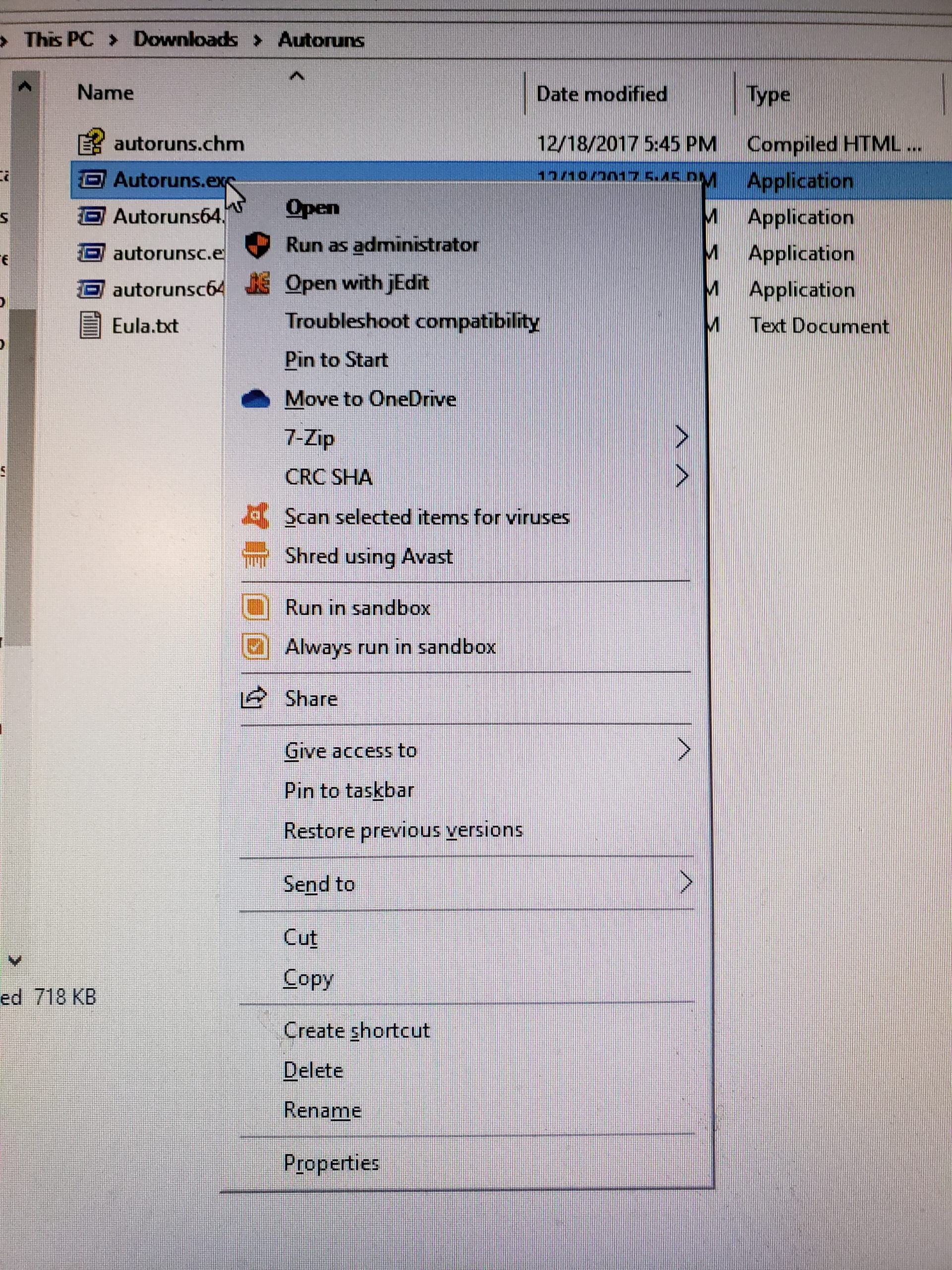
- Don’t open the file directly from your email. Download it first. That means choosing “Save” or “Save As” rather than “Run” or “Open.” I recommend creating a folder in which to download questionable files. That makes them easy to find.
- Right-click on the name of the file you just downloaded.
- If you have Avast (which you will if you’re my client, you will have the options “Scan selected items for viruses,” “Shred using Avast,” “Run in sandbox,” and “Always run in sandbox.”
- While running in the sandbox is of interest, few of you will want to use that. Use “Scan selected items for viruses.”
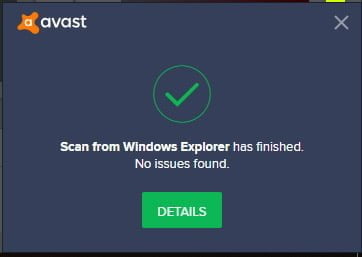
- Hopefully you get the clear message shown below. If you, you can choose your action. I prefer “Delete,” but “File Chest” is OK.
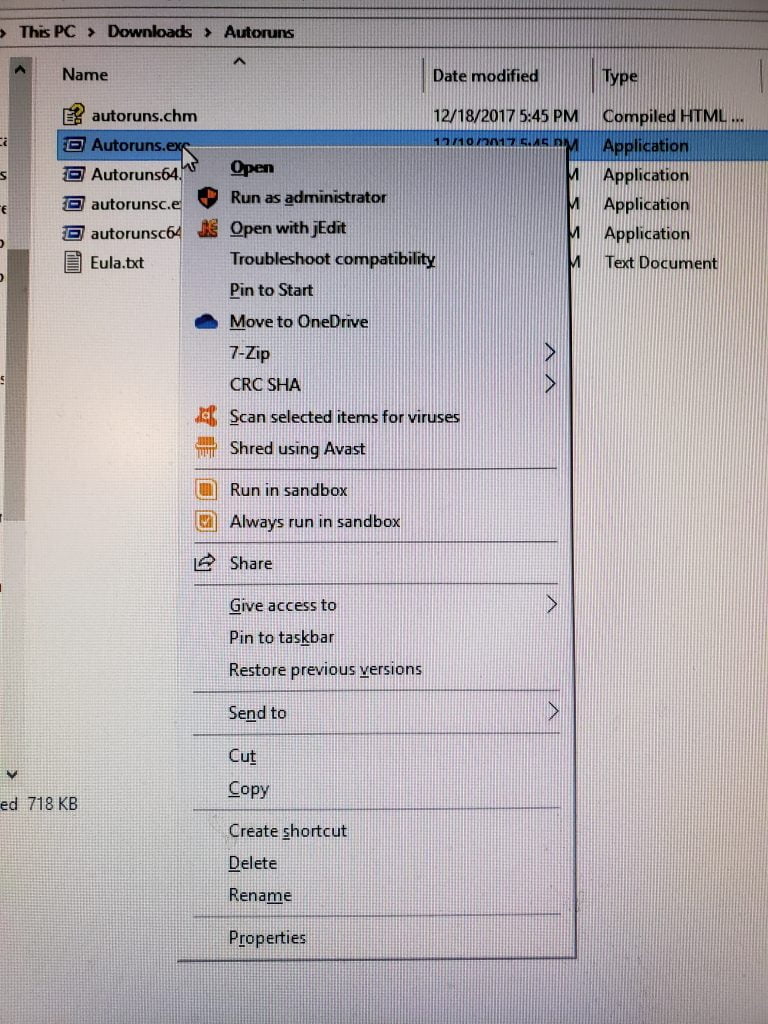
- Don’t open the file directly from your email. Download it first. That means choosing “Save” or “Save As” rather than “Run” or “Open.” I recommend creating a folder in which to download questionable files. That makes them easy to find.
- Right-click on the name of the file you just downloaded.
- If you have Avast (which you will if you’re my client, you will have the options “Scan selected items for viruses,” “Shred using Avast,” “Run in sandbox,” and “Always run in sandbox.”
- While running in the sandbox is of interest, few of you will want to use that. Use “Scan selected items for viruses.”
- Hopefully you get the clear message shown below. If you, you can choose your action. I prefer “Delete,” but “File Chest” is OK.
The key is to never open a file unless you are certain what it is and what it is going to do to your computer.